Embedded Text-to-Speech (TTS) in Bluebook
Available to students with a College Board−approved reading accommodation, the Bluebook app includes a built-in TTS tool that helps students hear content read aloud─no external software needed.
This tool is part of our broader effort to support assistive technology accommodations for digital SAT Suite and AP testing.
Built-In Accessibility
The embedded TTS tool eliminates the need for external TTS applications, reducing tech setup stress and offering a more uniform testing experience.
- Works offline
- Highlights text as it’s read aloud
- Reads math, tables, graphics, and written responses
- Available on practice exams, test previews, operational exams, and setup and check-in screens throughout the application
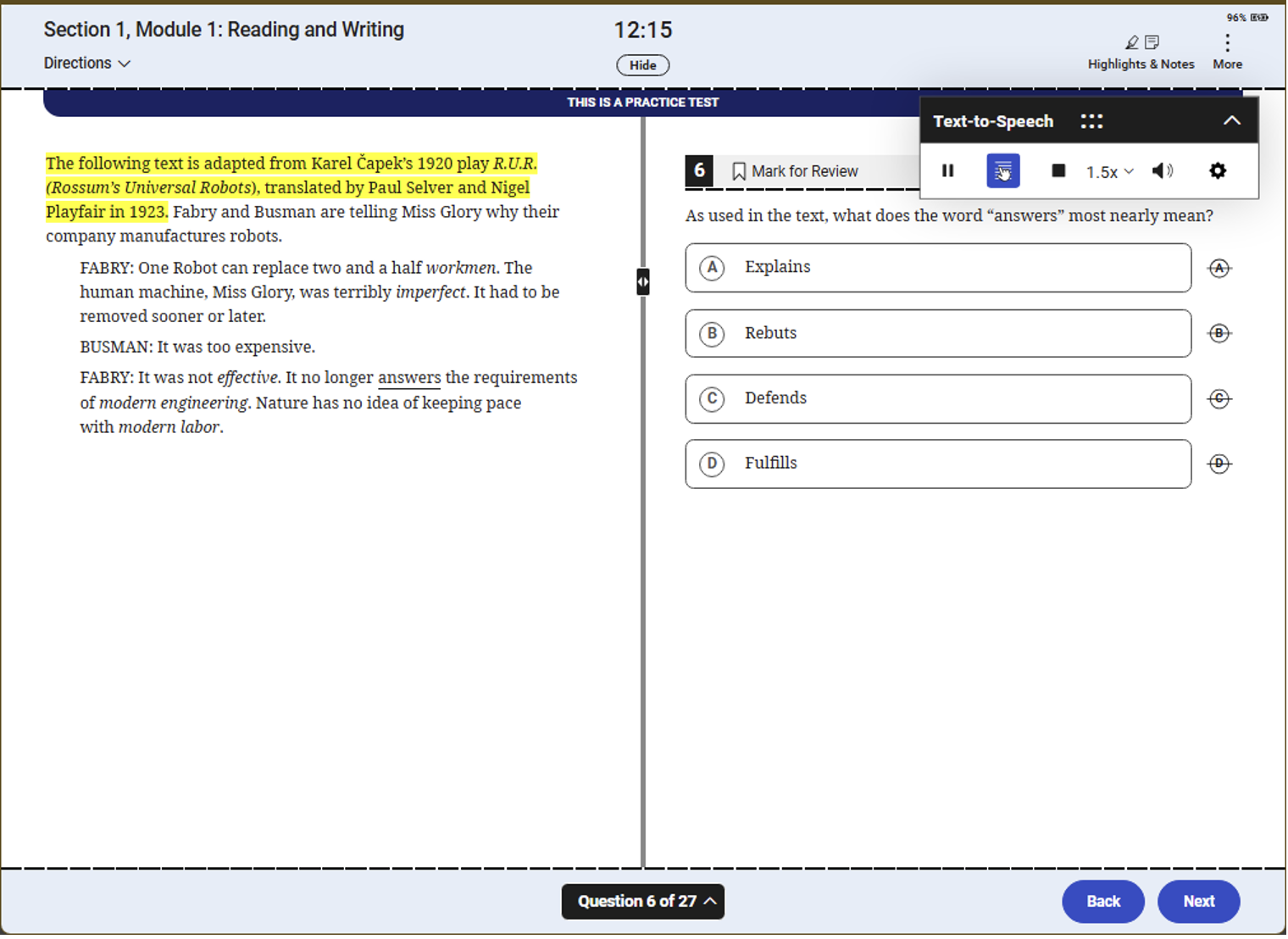
Note: Students using the TTS feature must bring their own wired, non-Bluetooth headphones.
Attention Mac users: To use the embedded text-to-speech tool on a Mac, you’ll need macOS 13 or higher. If your device is on version 12, upgrade the operating system or use another approved device.
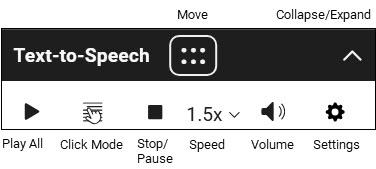
| How it Works | What it Does |
|---|---|
| Play all | Play all reads the content from the beginning of the stimulus and continues until the end of the page. |
| Click mode | Click Mode selects specific text to be read aloud. The TTS player will read from the beginning of the sentence that’s selected and will continue reading from that point on. It can be paused or stopped. |
| Stop | The Stop command halts the audio and resets the position to the beginning of the test content. |
| Pause | The Pause command temporarily stops the audio and allows the user to resume from the same spot. |
| Speed | Speed options range from 0.5x to 2.0x. Note: The maximum and minimum voice speeds may vary based on operating system. |
| Volume | The Volume option includes a slider for adjusting to user preference. |
| Settings | The Settings option includes up to two voice options, depending on the testing device. |
| Move | The Move button allows the user to drag the TTS controls to any part of the screen. |
| Collapse/Expand | The Collapse/Expand button allows the user to show or hide the TTS controls. |
- Note: Disable pop-up blocker. The first time you access/view the video, you must provide your name and email. Information is used to access the video and isn’t retained for other purposes.
| Student Tips and Reminders | Where the embedded TTS tool works: |
|---|---|
| TTS is only available to students with approved accommodation. | SAT, PSAT/NMSQT, PSAT 10, PSAT 8/9 |
| Headphones required─wired earphones recommended; wireless or Bluetooth may not be able to connect. | Digital AP Exams, including the hybrid digital |
| All AP and SAT Suite practice tests and test previews in Bluebook |
If you have questions about your approved accommodations, your Services for Students with Disabilities (SSD) coordinator can look up your accommodations in SSD Online or contact the College Board SSD Office.